Step 1 - Add WMS Service Connection


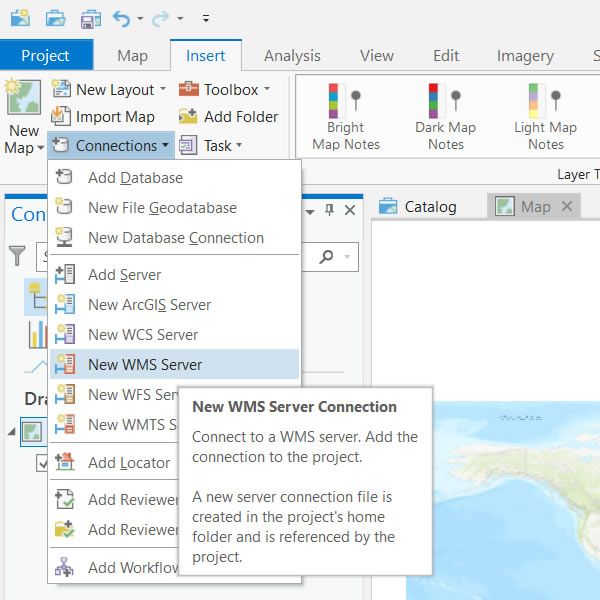
  • Launch ArcGIS Pro
  • Create New Map
  • Add New WMS Server Connection
Image

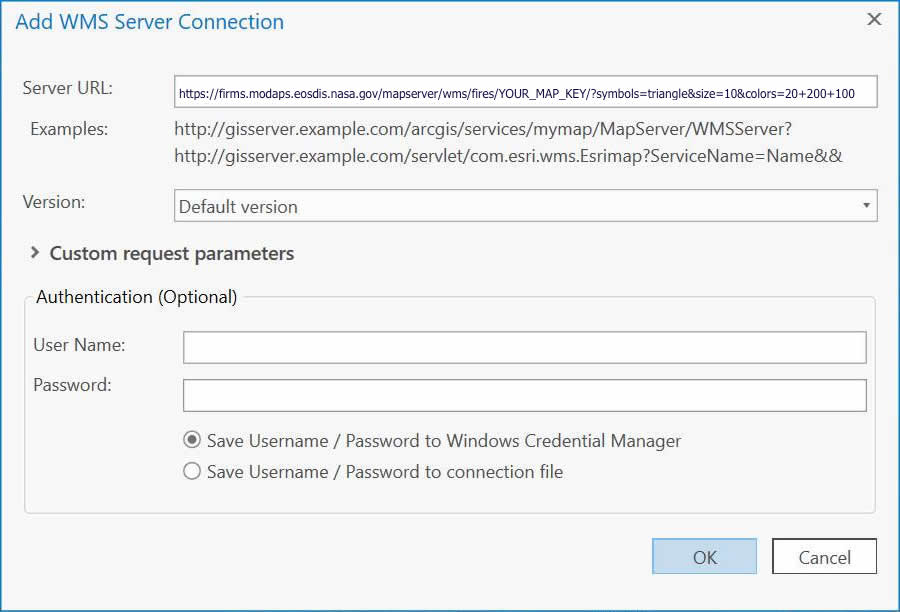
Step 2 - Establish Connection


Image

Step 3 - View FIRMS Layers


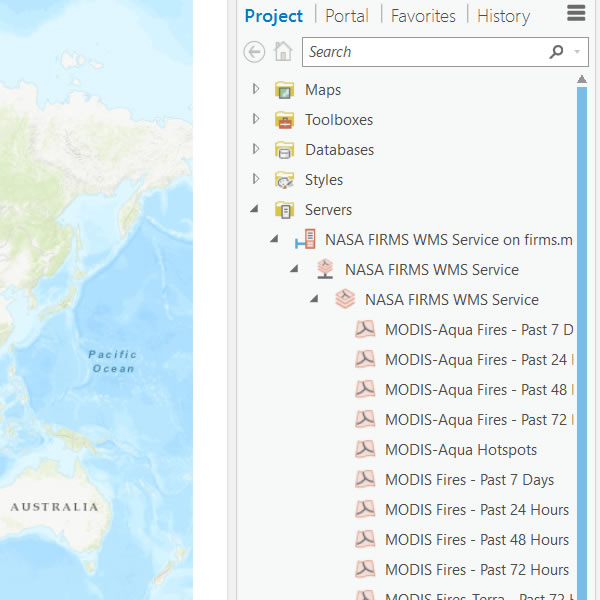
  • If connection was successful there will be a list of supported FIRMS layers.
  • Open the tree structure under ServersNASA FIRMS WMS Service on firms.modaps...
  • Find the layer of interest and drag into your Map Project (ex. fires_viirs_24)
  • These layers require additional setting:
    fires_modis, fires_terra, fires_aqua, fires_viirs, fires_viirs_snpp, fires_viirs_noaa20
    See Having problems ... section below
Image

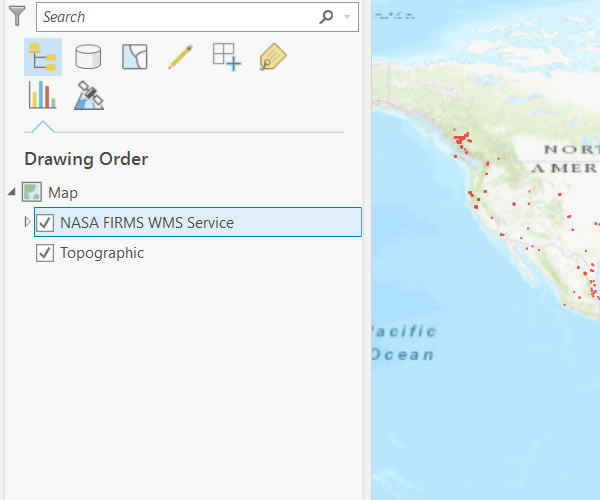
Step 4 - Draw FIRMS Layer


  • Drag the layer of interest into the desired ArcPro map window.
  • The layer will be added to your window and draw.
  • Position the layer accordingly in the draw order so it is visible with other layers.
Image

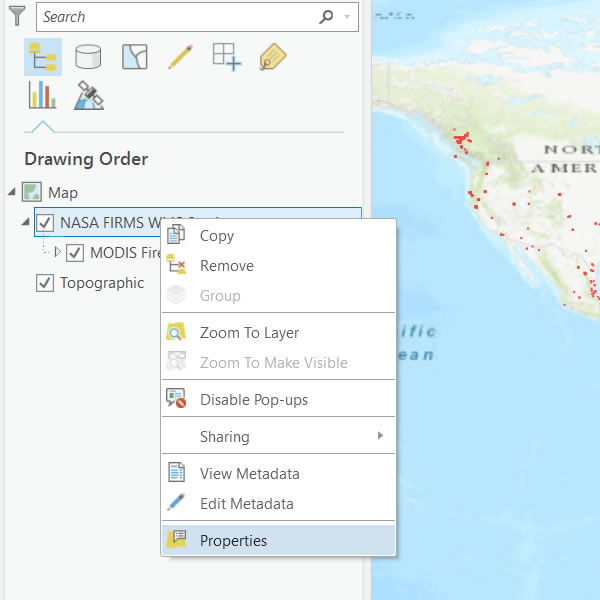
Step 5 - Open Layer Property Window


  • Right click on the FIRMS Layer.
  • Click on Properties.
Image

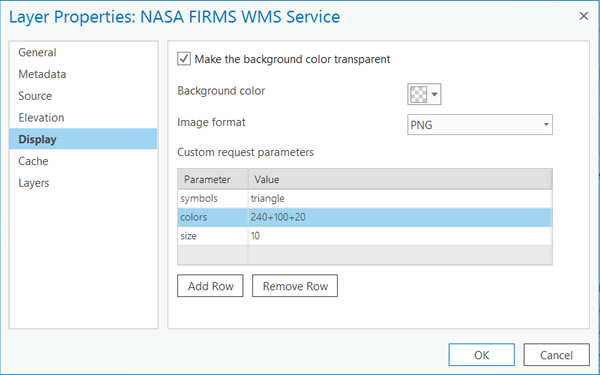
Step 6 - Set Layer Parameters 


  • Select Display option
  • Under Custom parameters add:
  • symbolstriangle
  • Use Add row to add the other values
  • colors240+100+20
  • size10
  • Click OK
Image

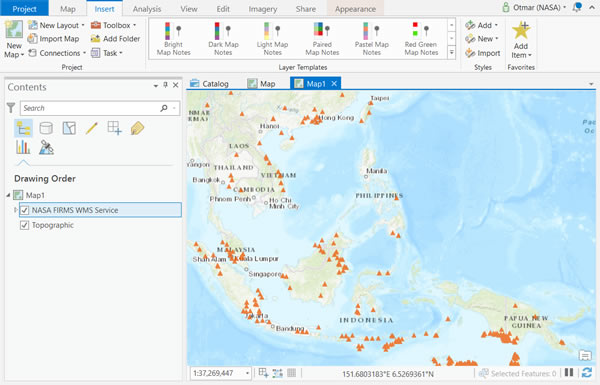
Step 7 - View Results 


Image

Having problems...

  • Check you have included '/' at the end of your WMS url (see step 2)
  • Try opening layer such as fires_viirs_24
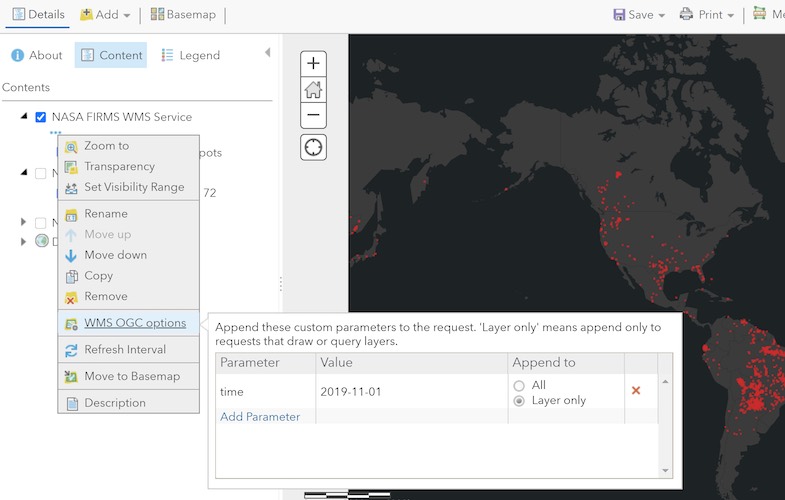
  • Following layers require additional setting (see image below) as they are date/time dependent:
    fires_modis, fires_terra, fires_aqua, fires_viirs, fires_viirs_snpp, fires_viirs_noaa20
Image

Smart Card users: 

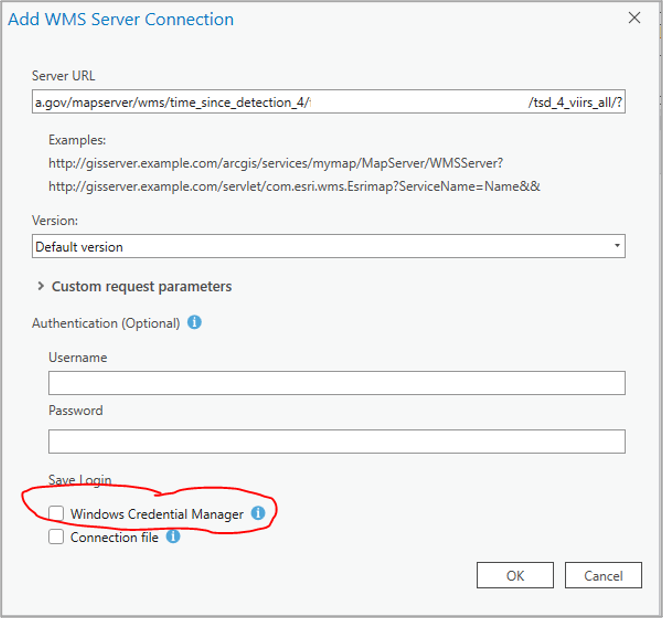
  • When connecting to a WMS or WFS service, the Windows Credential Manager may be toggled on by default.
  • Toggle it off.
Image
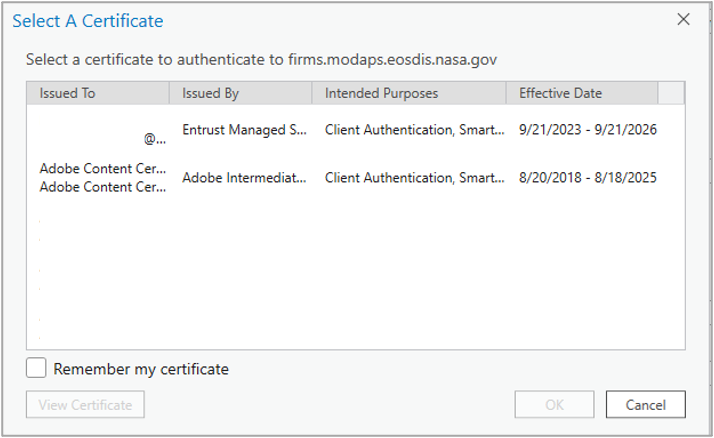
  • When prompted to select a PIV certificate in the subsequent step, do not select one and select 'Cancel'.
Image

Details

Last Updated

April 22, 2026

Published

Nov. 12, 2019