We are in the process of migrating all NASA Earth science data sites into Earthdata from now until end of 2026. Not all NASA Earth science data and resources will appear here until then. Thank you for your patience as we make this transition.
Read about the Web Unification Project
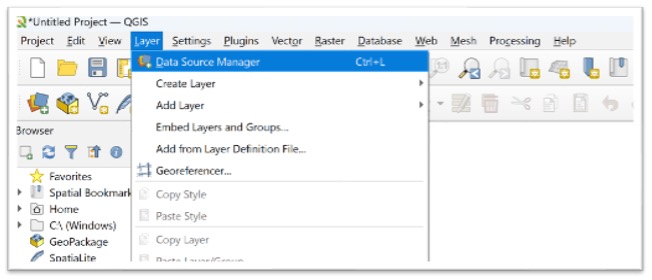
- Launch QGIS
- Open 'Layer'
- Click 'Data Source Manager' (or use the shortcut icon on the toolbar)
Image
Step 2 - Create New Connection
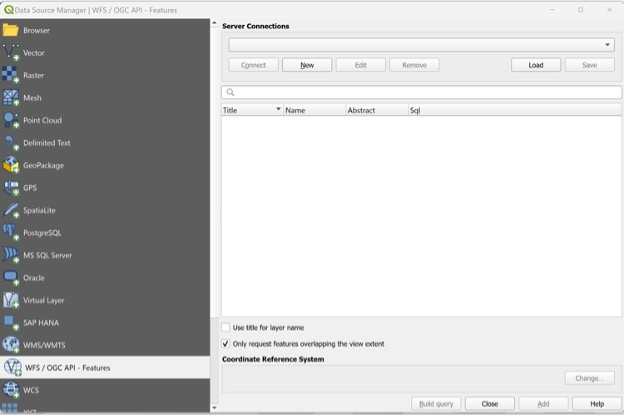
- Select WFS / OGC API – Features (from the source manager list on the left)
- Click on 'New' to create new connection
Image
Step 3 - Specify Connection Parameters
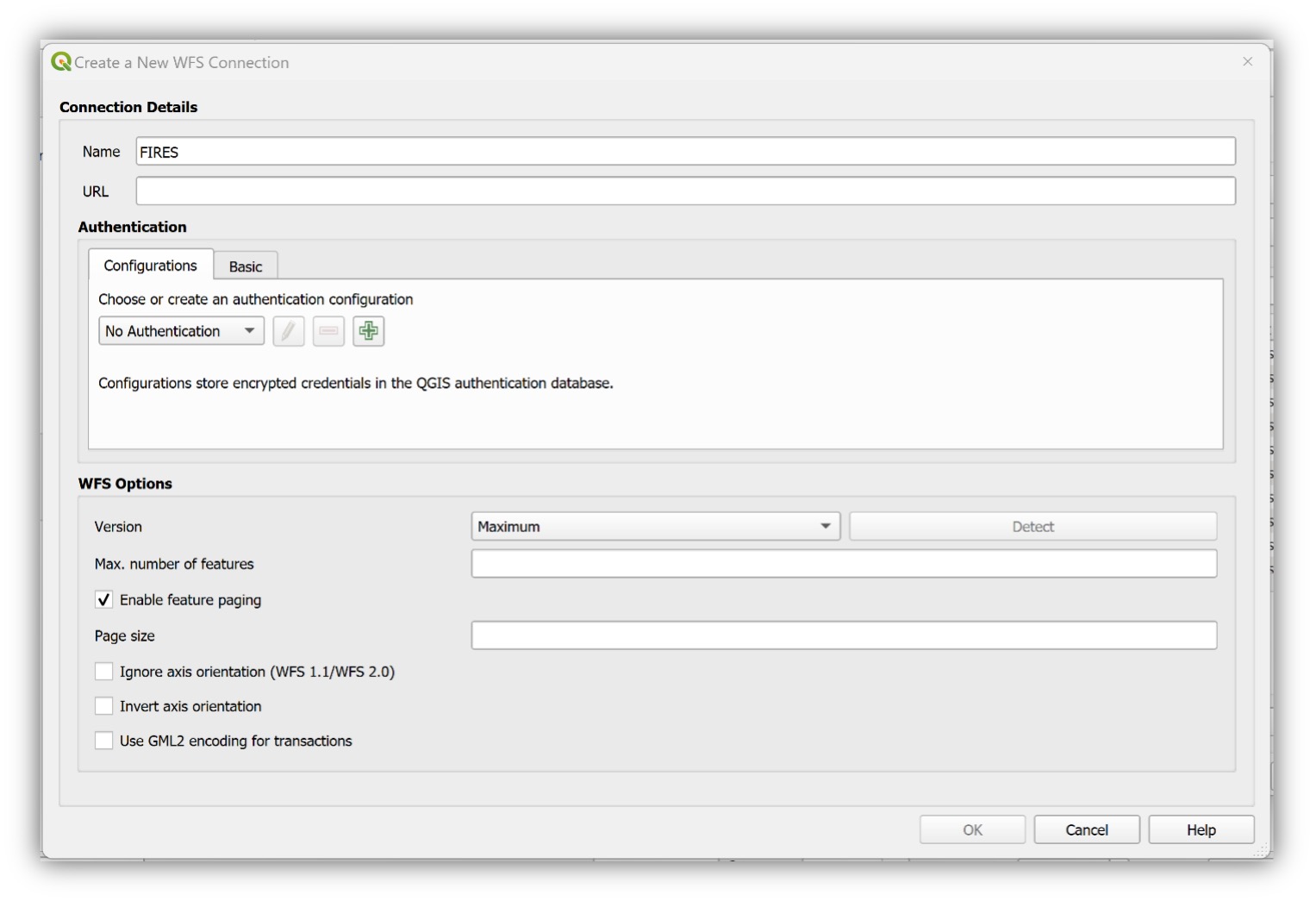
- Name: Enter a name for the new connection
- For server URL set:
https://firms.modaps.eosdis.nasa.gov/mapserver/wfs/[LAYER_TYPE]/<YOUR_MAP_KEY>/[LAYER_TYPE]is the geographic region of interest (review the GetCapabilities list here)<YOUR_MAP_KEY>is a unique code containing both letters and numbers; you can request a free Map Key here: https://firms.modaps.eosdis.nasa.gov/mapserver/wfs-info/#firms-mapkey- For example - for the WFS for the contiguous USA and Hawaii, you would insert:
https://firms.modaps.eosdis.nasa.gov/mapserver/wfs/USA_contiguous_and_Hawaii/<YOUR_MAP_KEY>/ - If successful, this would list the MODIS & VIIRS (including S-NPP, NOAA-20, NOAA-21) Fire / Hotspots for the last 24 hours and last 7 days.
- Click on OK.
Image
Step 4 - Select FIRMS Layer
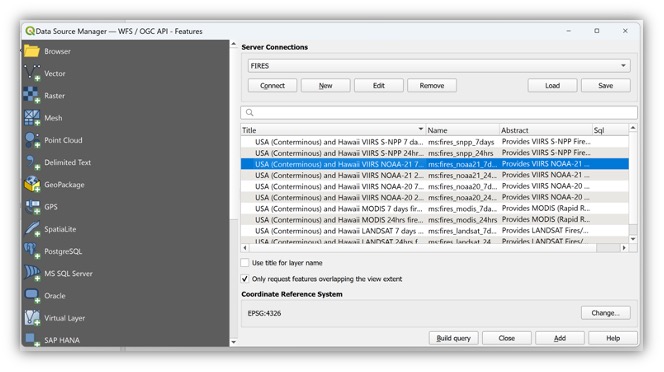
- Click on 'Connect' to get the list of available FIRMS layers
- Choose layer(s) of interest
- Click on 'Add'
Image
Step 5 - Customize Color and Attributes
- Open Layer Properties
- Select 'Symbology'
Image
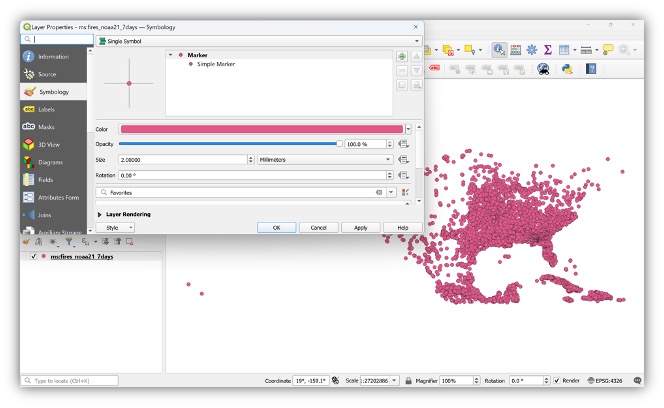
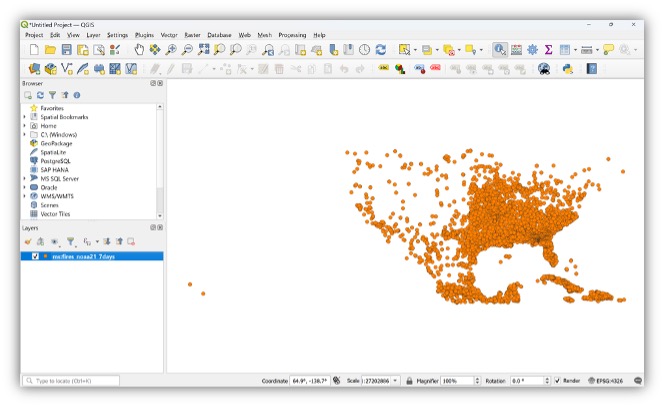
Step 6 - View Results
- The map will display custom symbology
Image
Details
Last Updated
Published
Nov. 12, 2019